
Cameo makes a first foray into AI to help import bank statement transactions more flexibly. As well as existing methods you can now:
- Supply a PDF of a bank statement, from which we’ll extract transactions, in accounting tasks → import statements.
- Make use of a screenshot or carefully-made scan of a list of transactions in accounting tasks → import statements.
- Provide an example spreadsheet (CSV) of transactions from your bank, in organisation settings → bank accounts.We infer how its arrangement and create a recipe for importing transactions on that account for you, rather than making one manually.
- Give a PDF, formatted text (such as an email), screenshot or (good quality) scan of a receipt or invoice from a supplier, in trading → receipts and expenses claims, from which we obtain the details. This allows more automatic detection of attaching receipts to transactions during reconciliation of accounts (in accounting tasks → reconciliation).
These methods use Claude AI by Anthropic to understand the files presented. AI is really well suited to inferring the content of documents. You need a pay-as-you-go account with them to do this (it is entirely optional, of course) and it costs a small amount for each one. Experience so far suggests you can process several documents per penny: it is not too expensive.
The wider range of file formats for transactions are available has needed some rearrangement of bank statement attachment controls.
Contents
Background
A record of transactions is central to understanding who is paying you and therefore whether memberships are valid. They also provide the raw material for broader accounting in Cameo, if you wish to use it.
Ideally, we would obtain bank statement transactions automatically from banks. We do this for all payment processors Cameo supports (like Stripe and GoCardless), but not clearing banks. They use a system called open banking (it definitely is not open!).
open banking (not)
For a short while customers of Xero could obtain their own bank transactions automatically in Cameo second-hand through their open banking feed. Also briefly, GoCardless offered a product that provided free access to your own accounts via their banking feed. Xero and GoCardless have withdrawn both of these for new customers, though they are still both available to people who were already using them. I suspect complete withdrawal will happen at some point as well. Quicken (Quick Books) also apparently blocks automatic access to your own transaction data.
Extensive research suggests there is no product currently available at reasonable cost that lets customers access their own bank statement transactions.
The cost of setting up such a feed directly is completely prohibitive. Technically it is straightforward. But five figure sums for the regulatory approvals needed and expensive annual audits make this a non-starter for all but the largest companies.
Therefore, we’ve now tried to reduce the friction in obtaining transaction data manually by file transfer in the areas we have control over. This should also help where there has never been automatic access, for example for certain charity accounts and for many savings accounts.
CSV files
Many banks provide transaction data in CSV files. Unlike file formats, such as OFX, which identify the parts of a transaction according to a standard, CSV is the wild west.
- There is no common arrangement of columns, descriptions, dates and so on.
- Some banks use separate debit and credit columns; others a single positive or negative amount, without or with a £ sign, before or after a minus.
- Sometimes transactions carry across multiple rows.
- Some use multiple rows at the start to provide general account information.
- We get repeated header rows in the middle of the data.
In short, they have really not considered how people would use these for automatic processing. These changes help Cameo to make sense of what is available from the banks.
Bank statement uploads
Where you can’t obtain transactions automatically, you get them from your bank and upload them manually in accounting tasks → import statements. You are at the mercy of what files a bank provides.
Cameo can import three formats that banks commonly make available:
- OFX, a standard file designed for the purpose. If your bank supplies these, you should probably continue to use them.
- QIF, a proprietary format created by Quick Books. This is rather more vague a format, but because so many people use Quick Books, some banks supply it.
- CSV, a non-standard catch-all term for a way of providing a spreadsheet, without any consistency between banks over columns, layout, dates or character sets. To manage these, we have so far provided a tool, jcomma, to let you describe (in a recipe) how to interpret CSVs in a way that Cameo can use.
Now, the power of AI offers alternatives to these three, both in understanding the variety in CSVs, and in additional formats that banks also provide that aren’t easy to consume mechanically.
CSV (and spreadsheets or tables in general)
We continue to use a recipe to process CSV files, which describes their format. Now, though, you can produce this recipe automatically. Show Claude an example CSV by uploading the CSV in the bank account where you would previously have supplied your recipe manually, in organisation settings → bank accounts. It takes about 20 seconds for Claude to produce the recipe for you. Then upload similar CSVs in accounting tasks → import statements, where Cameo uses the recipe to understand the file.
In addition you can supply other spreadsheets (both the example to work out the recipe, and regular uploads) differently. You can:
- use TSV, a variant of CSV which uses tabs rather than commas to separate columns; and also XLSX (I do not know any banks that supply XLSX, but you can now use XLSX everywhere that can use CSV)
- copy a table of transactions from a web page. Some banks do not provide download-able files at all, but do display your transactions on screen. In this case, you can copy that table and paste it to Cameo. It behaves exactly like a CSV file. Indeed this may be more convenient, even if they do supply CSVs (though bear in mind the arrangement of columns etc may be different from the CSV so you may need a different recipe).
PDF statements, scans and screenshots
As an alternative to structured files, you can also now use Claude to understand free-format files, such as:
- PDF facsimiles of statements (which most banks provide, even those that don’t offer CSV).
- Screenshots. When you copy a table (as above) you are copying the structure and the characters off the page. When you take a screenshot, you have an image on the clipboard. Claude can use OCR on the image and infer the structure from the the result to extract the transactions. Windows 11, MacOS and iPad all let you make screenshots of selected parts of the screen, so you can isolate the transactions.
- Scans. If you still only have paper statements, in principle you can scan it. Then it is just like a screenshot (in an image or even in a PDF). However, Claude is less good at handling scans: the scan needs to be high quality, otherwise Claude can try to second guess what the transaction actually says. (If it does, you can now amend transactions in accounting info → statements and transactions: click the pencil icon)
changes to statement attachments
As well as extracting transactions from files, you can also attach arbitrary files to bank statements. For example, you might upload transactions from a CSV but also attach the PDF facsimile statement for reference.
Because you can now use a PDF (or an image) as a source of transactions, we can’t use the same upload control for arbitrary attachments as well.
Instead, upload statement attachments in accounting info → statements and transactions. First, locate the statement you want to attach to. Then use the upload control underneath the statement to add the attachment.
We no longer provide statement attachments not attached to a specific statement. Instead, add the file (suitably tagged) to the file store. The Copy button lets you attach it to a particular statement from there later.
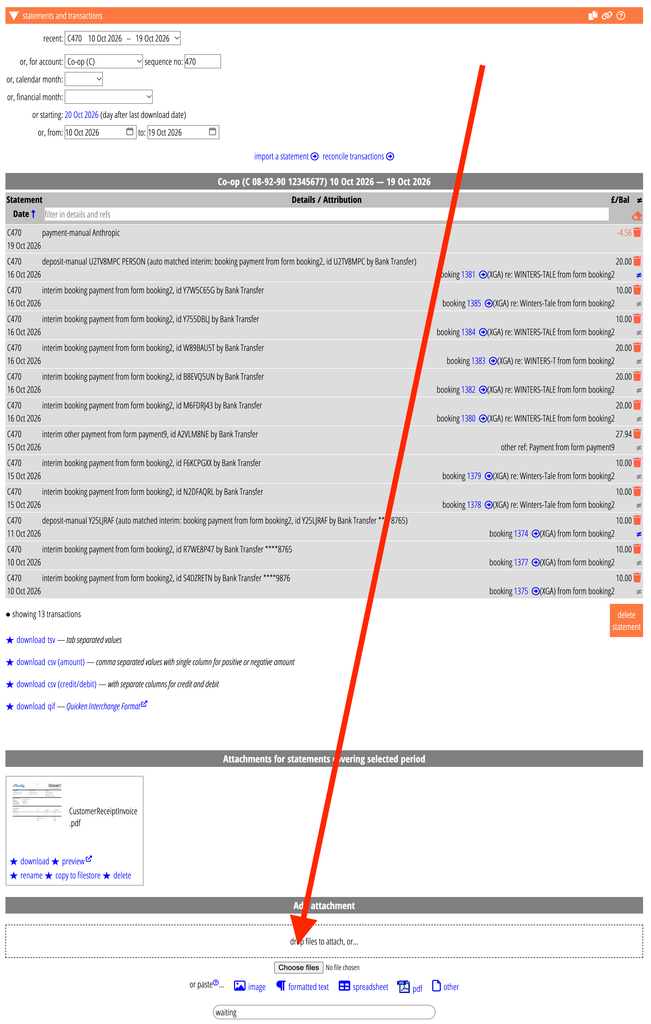
There are two other ways to attach to statements, which have also changed:
- You can email an attachment to Cameo. Now there are two separate email addresses to do this (see profile → incoming email for details):
- statement@… (and variants) for a general attachment. You must include the account code and statement in the address or subject line to identify where to attach it.
- transactions@… (and variants) to process the email attachment as transactions (including, now, PDF and images, as with uploads within Cameo)
- WebDAV lets you share files and scans directly with Cameo, often from a phone (get a PIN from profile → scanner PIN). There are now separate folders to place files in, for:
- Statement Attachments (which has folders for the 20 most recent statements to choose which to attach to), and
- Import Transactions (which further subdivides by account)
Receipts
Cameo mechanically extracts data from receipts and incoming invoices uploaded in trading → receipts and expenses claims. You can then match them with transactions by date and amount during reconciliation.
The different layouts, images for company names and so on, makes this rather hit and miss. Claude can now interpret these more accurately, and from more varied sources: PDF, scans and screenshots. Upload them as usual. If you have Claude turned on for this, Cameo uses it, otherwise it falls back to the current method.
Claude AI
You need an Anthropic pay-as-you-go account to use Claude to do:
- CSV automatic recipe creation,
- PDF/image transaction uploads
- Receipt interpretation
Choose which of these you want to enable, from the menu provided in the Claude section of admin → system preferences. After you do that, Cameo asks for credentials to connect Cameo to your Anthropic account. The box that does this explains how.
You can add as little as $5.00 to start with, with an optional automatic top-up. The cost depends on the size of the data you supply, but it is in large fractions of a penny per upload, so not expensive. Making a recipe costs slightly more, but you only need it once per bank account that needs it.
We may add further judicious uses of AI in future. You enable each separately, so you have control.