
Everywhere you send file attachments to Cameo, you can now also paste the content. This is particularly handy where you have a screenshot, or excerpted text or an image in front of you, that you want to send to Cameo. Copy and paste avoids saving the content to a file first. You can also paste files copied from Finder (Mac) / File Explorer (Windows). That helps when you can’t see both Finder and Cameo windows together.
Contents
Background
Cameo uses file attachments in numerous places. For example:
- you send files to your media library to make images available to templates,
- cheque deposit evidence,
- list subscription evidence,
- import memberships in bulk,
- save bank statement data, and so on, as well as
- general member attachments and
- the file store.
You can save an attachment to Cameo by:
- clicking the Choose File button and selecting it (which often means navigating to the file even though you have a Finder/Explorer window already open in the right folder)
- dragging from File Explorer (Windows) or Finder (Mac) onto the relevant target (which is tricky if bnoth windows aren’t visible at the same time).
Now, there is a third way: you can also paste your attachment. Previously you could do this for media library uploads, but that was a special case and did not include pasting files. All attachment uploads now offer this.
Paste to save
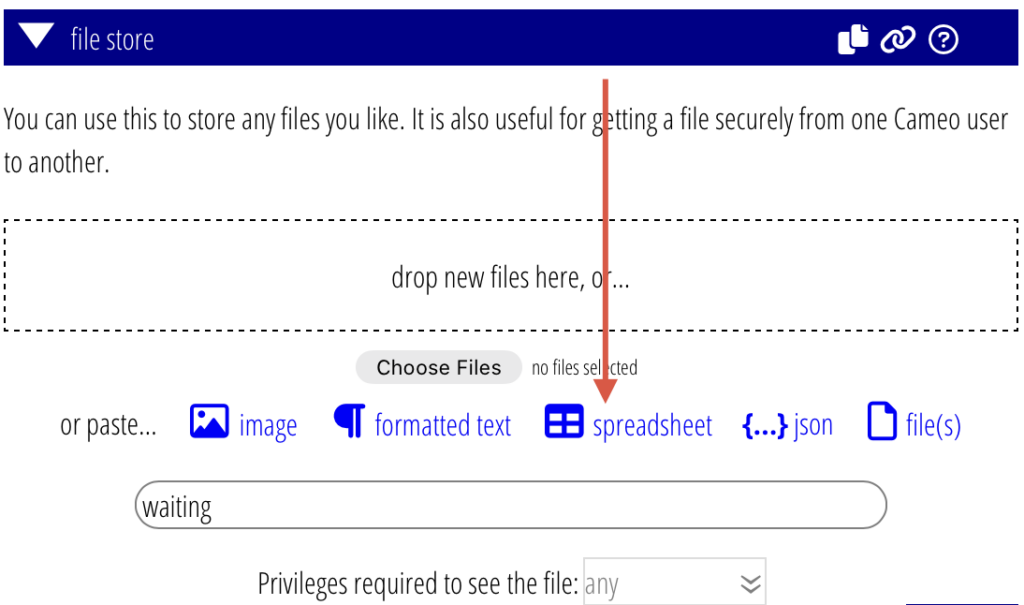
Additional buttons underneath the Choose File(s) button let you paste previously copied data in appropriate formats (Fig 1). Wherever an image, formatted text or spreadsheet is relevant, you’ll have image, formatted text and spreadsheet buttons respectively. Occasionally a JSON button is also useful. For places where any file is appropriate you’ll also see the file(s) button.
- Formatted text saves a HTML attachment.
- Image saves JPG, PNG, GIF or SVG attachment.
- Spreadsheet saves a CSV attachment.
- File(s) saves whatever the file is.
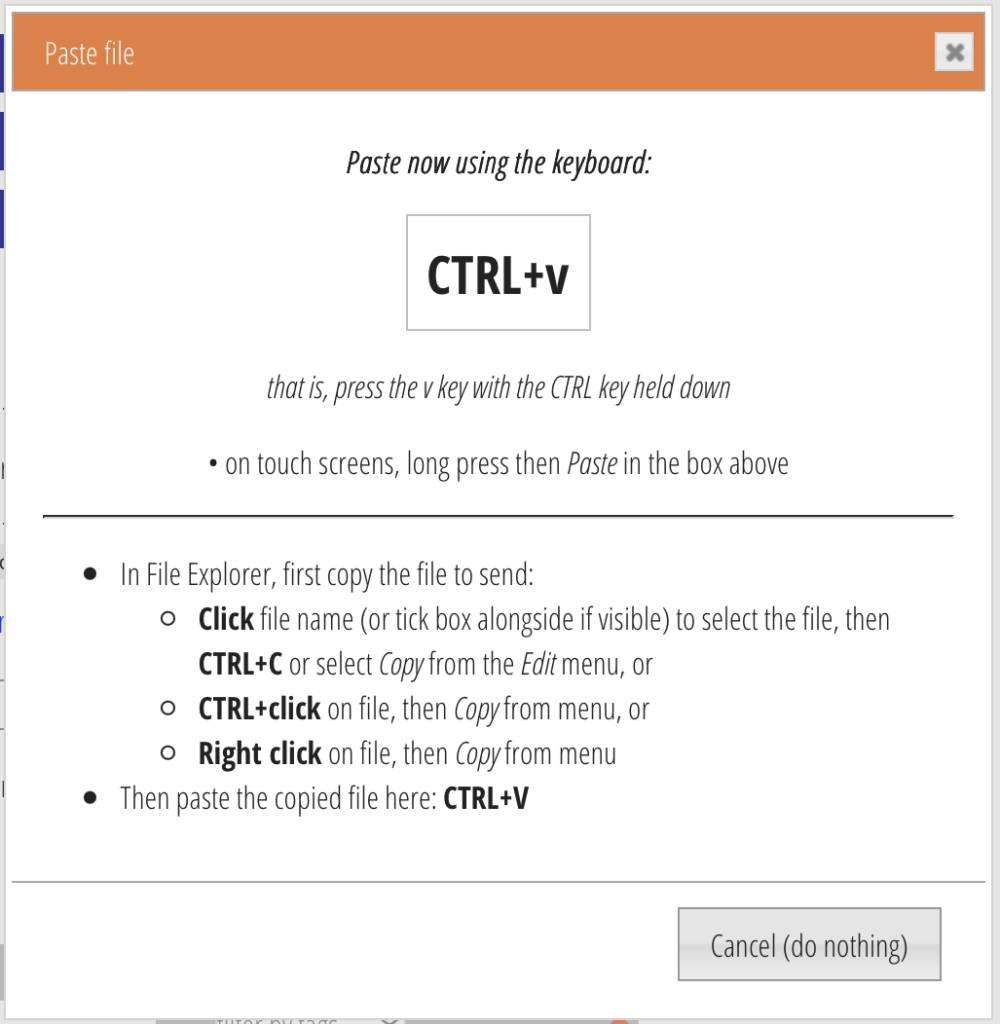
When you use one of these, you see a box ready to accept paste. Then just paste as you would in a document:
- On the keyboard, CTRL+v on Windows, ⌘+v on Mac
- Especially on touch screens, in the outlined box, long press (or right click with a mouse, or two-finger tap on a trackpad), then select Paste off the menu
- If you have a menu bar in your browser, you can use the Edit menu, then Paste (note iPadOS 27 provides a menu bar).
Cameo creates the file attachment from your pasted data. The box also provides hints for copying the data in the first place.
Arguably, paste from screenshots is most useful. Previously you had to
- save the screenshot to an image file (it is unclear to many people how you would even do that on Windows),
- then upload a copy of the file,
- and then ideally delete the local file.
Now, though, you can take a screenshot and paste it straight into Cameo. Selected cells from spreadsheets are also now much easier to transfer.
copy and paste files
As well as content copied from the screen, you can also paste files (except formatted text, where it doesn’t really make sense).
In case you haven’t come across it before, copying a file in Explorer/Finder lets you paste to copy or move it into a different folder. When Finder/Explorer windows are not visible simultaneously, making drag and drop difficult, copy/paste fills the gap. Copy a file by selecting it, then copy (CTRL/CMD+c, Edit > Copy or right click and Copy), navigate to the destination, then paste.
In effect, paste in Cameo now does the same thing, pasting the file selected in Finder/Explorer to a Cameo attachment rather than a local folder.
You can achieve exactly the same by dragging the file from Explorer/Finder into Cameo. However, like copy.paste in Finder/Explorer, that needs both windows to be visible alongside each other (or some deft manipulation using the ALT and TAB keys to switch window mid-drag). Instead, you can now copy the file, switch windows to Cameo, and paste it using the paste… buttons.
why a pop-up?
The paste… buttons pop up a box rather than doing the paste immediately. We do this because browsers treat buttons that do a paste as a potential security risk1. They either require you to give permission or to click another very subtle button to complete it.
The extra step of popping up a box avoids this (and is much more obvious than the browser’s own interaction).
why not just a single paste button?
We use different buttons for different kinds of data because the result would be ambiguous otherwise.
When you copy, your operating system makes the data available in multiple different formats. For example, if you copy some spreadsheet cells, you get plain text TSV data (equivalent to CSV), HTML formatted text containing a table with those cells, and a PNG image of the cells. Cameo needs to know which you intend.
Similarly copying an image makes available both a PNG file and formatted HTML containing the URL of the image (as you get in a template).
You can see this happening if you choose the “wrong” button to paste into Cameo’s file store.
WEBP
Almost anywhere you can send an image, you can now provide it in webp format. WEBP has been around for a while now, and it is starting to be used more. It is similar to JPEG but compresses better leading to smaller file sizes.
The exception is uploading files to your media library. That’s not because we couldn’t, but because images you put there will usually end up in emails. While all browsers can display WEBP, support in email readers is patchy. This may change in future.
- The problem is that a malicious web page could provide a button that says it does something innocent but actually collects your paste buffer contents. When you paste using an operating system method like CTRL+v, you know you are pasting intentionally, not so risky. ↩︎