You can now have additional descriptive fields in the descriptions part of events & bookings → events. Substitutions let you include the field content in an event template or a ticket email or paper template.
Contents
Background
Cameo recently introduced event description templates. These provide for more compelling layouts of event listing pages on your website than the formatted text of the full description allows.
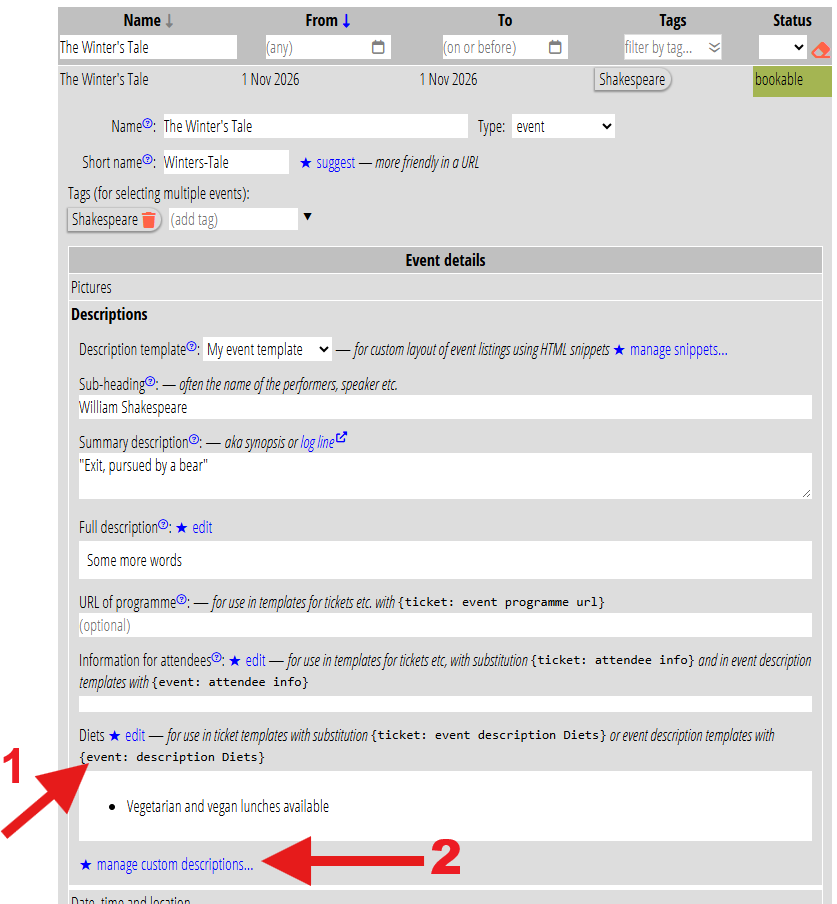
Once the template is prepared, people adding events just need to fill in the relevant boxes (Fig 1: 1). They don’t need to know about the mechanics of the template or managing the custom fields. They just need to know that text entered in a certain box appears appropriately in the web page event listing.
Custom event description fields
To complement event description templates, you can now add custom descriptive fields to events. This allows you to:
- enter separate bits of information which the listing web page displays in different areas. The layout is controlled by the template. For example, you might want a box highlighting diets available, or one saying whether dogs are allowed. You can now add fields for these and have the template position them appropriately.
- add custom information to ticket emails, complementing the built-in field information for attendees.
- include them in ordinary full descriptions. They are less useful there, as you could just include the additional information inline. They do, perhaps, serve as a reminder to include it.
When preparing a template (or the full description), select {event: description ...} from the substitutions menu to insert it. Then select which custom description to include so the name of the field appears in the substitution. For example {event: description Diets}.
Similarly, in ticket email (or paper) templates, use {ticket: event description ...}.
Adding, naming and deleting custom fields
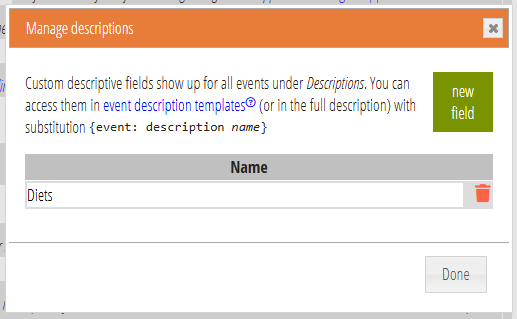
Administrators (only) see a button at the bottom of the event descriptions sub-section: manage custom descriptions (Fig 1: 2). Click this to add or change the custom descriptions. All that’s need for each is an appropriate name (Fig 2). All provide formatted text.
Once you add a field, it is present in all events (though it can be empty).