
Cameo now provides a self-service membership cancellation form. Mainly, this helps satisfy the requirements of the Digital Markets, Competition and Consumers Act from 2027. People can cancel immediately or at their forthcoming expiry date. You can also now manually arrange to cancel on renewal date for people who don’t use the form.
Contents
Background
Obviously, you would rather people did not cancel their membership. Making it difficult just frustrates people, though. That’s the reasoning behind the part of the UK’s Digital Markets, Competition and Consumers Act which deals with cancellation. It says it must be as easy to cancel a recurring subscription as it is to start it.
The Act requires two reminders in advance of an automated renewal (Cameo also now provides for an additional advance reminder). In practice, each of these messages should direct people to an online form if they want to cancel, using a personalised link. You could just say contact us, but the law requires you to respond within 24 hours. For volunteer organisations, that really requires automation.
Cancellation form
The new cancellation form1 works very much like the renewal form. Reaching it via a personalised link (for example, using {show: link to cancellation} in your advance renewal reminders) means the form already knows who they are. So it only needs to ask about things pertinent to the cancellation.
If they get to it by website navigation, then the form first asks them for their email address. It then sends them a link by email to verify they are indeed who they say they are.
As usual, you can edit the text of the form, re-order elements, and omit those you don’t want. For this form, you’ll want most of them.
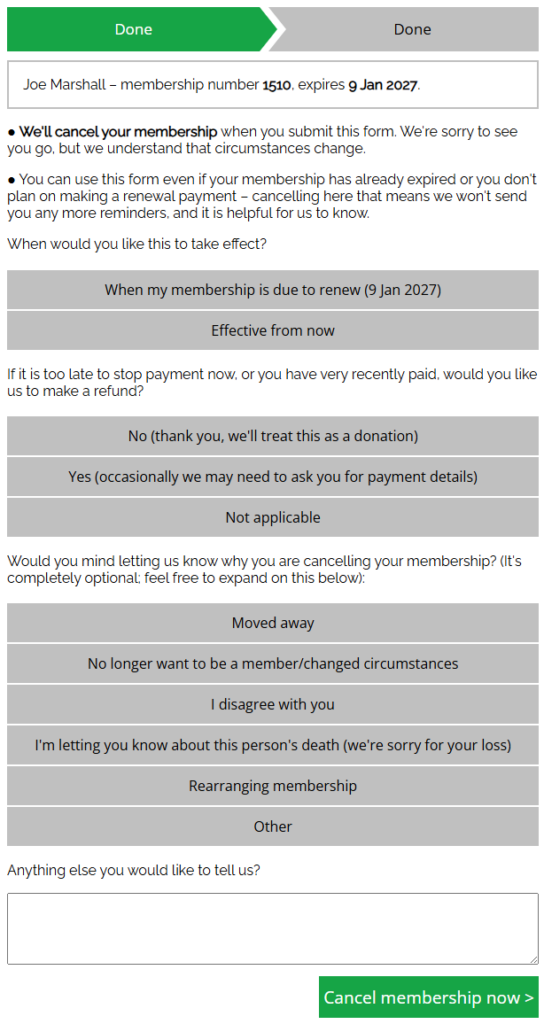
The main part of the form (Fig 1) comprises:
- firstly, briefly telling them about their membership – in particular their expiry date
- then confirms the form will cancel their membership
- asks them whether they want to cancel immediately or when their membership expires
- asks whether they want a refund (which you are obliged to give if payment has been made, up to 14 days after renewal) – this question is not visible if they choose to defer the cancellation. Many people are happy to let payment stand as a donation.
- optional choice of reasons for cancellation
- a box for them to provide any other information.
When they submit the form, their membership is either cancelled or set to cancel automatically on their expiry date (and not to send renewal reminders). The form sends an email confirmation, for which you’ll need a template. Set that up in the form options ( ).
).
What cancellation does
Immediate cancellation through the form is exactly the same as manually cancelling in member tasks → membership status, cards and qrcodes. It changes the record from current to old and records the reason. (If you or they omit that question, the reason is just cancelled). This differs from someone just letting a membership lapse, when the reason is is expired: that means we continue to send them reminders.
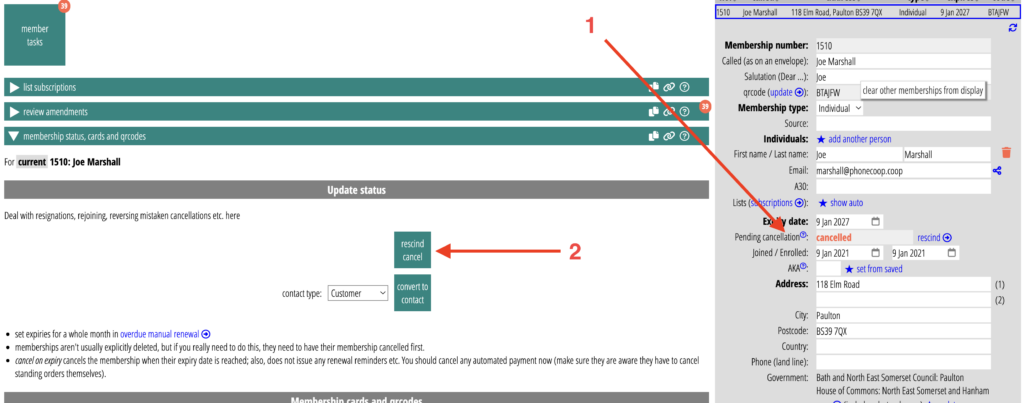
Deferred cancellation, though, is new. When someone does this, you’ll see a new field in their membership record indicating this, with the reason (Fig 3: 1). When their expiry date arrives, the membership is cancelled automatically. In the meantime, the presence of this field prevents any renewal reminders being sent to them from renewals → renewal reminders.
Any cancellations are posted in the regular membership changes notification (for deferred cancellations, both when requested and actioned).
refunds
If they request a refund, we send a separate notification. For refunds:
- Usually you’ll need to make refunds through the payment provider account, such as Stripe or GoCardless.
- If they paid by bank transfer, you’ll need to ask them their account details if you don’t already have them in your bank statements.
- If they paid by standing order, they must cancel the mandate themselves: you cannot do this for them. We suggest adding some conditional wording saying that in the form’s confirmation email (using
{if: standing order}).
Manual controls
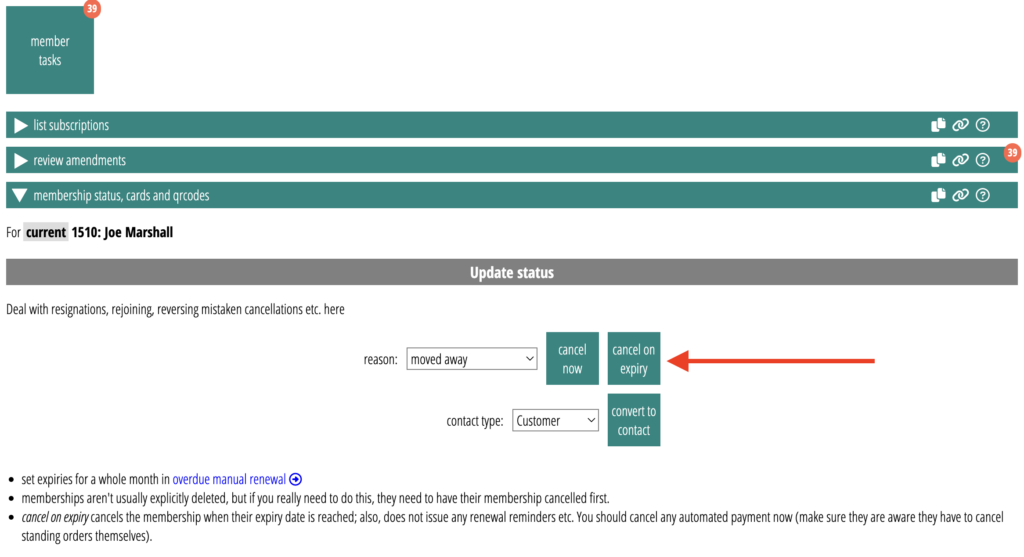
You always could cancel a membership in member tasks → membership status, cards and qrcodes. Now, you can also set cancellation on expiry date, using the cancel on expiry button (Fig 2). This saves you having to set a reminder.
If they change their mind (or you make a mistake), you can later use the rescind cancel button (Fig 3:2; or reinstate, if cancellation has already taken effect), whether they used the form or you did it manually. Of course, you can also Undo manual changes if you accidentally cancel.
- The form type is cancellation rather than cancel because the name appears on buttons. A cancel button could be confused with cancelling the activity in progress. ↩︎