.
You now have the preference whether to put pinned templates at the top of your list of templates or not, in communications → templates and mailshots.
Contents
Background
Clicking on a pin at the right side of a template summary causes it to stay at the top of the list. This helps to keep frequently used templates to hand. Pins are personal – different people can pin different templates.
However, these predate the filters and adjustable ordering for templates. Filters let you limit which templates you see according to last change date, name, content (click the icon next to the search box to search in the content), author, audience, tags and/or last sent date. You can also sort by name or last changed date.
if you have many pins (which can arise if you repeatedly copy a template with pin set), these can get in the way of other, perhaps more recent, templates. For that reason you can now ignore pins.
Ignoring pins
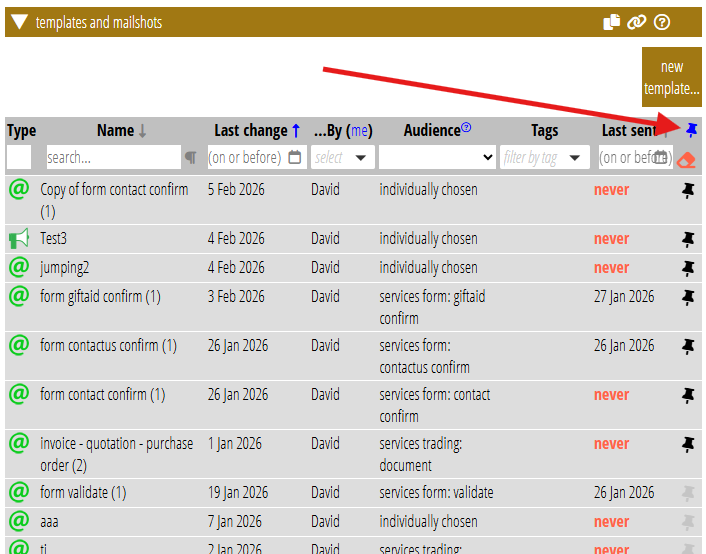
To ignore pins, click the pin icon in the heading of the table of templates (Fig 1).
We store this as a user preference, so it stays like that until you change it back again.
You can still set and clear pins of individual templates. The pins just don’t have any effect unless the preference is turned on.