
An email is said to bounce when it is returned to sender because the recipient’s email system will not accept the email. More accurately, the system sends an automatic reply saying so, often including all or part of the original email.
Contents
How Cameo handles bounces
For ordinary email, if you send a message that the recipient’s system does not like, then you will see the automated, often cryptic and often vague, reply. However, providers return email sent from Cameo back to Cameo irrespective of what the From email address is. In particular, it is returned to a unique address1 which allows us to identify the original, intended recipient automatically.
out-of-office replies
Recipient systems handle Out-of-office replies differently:
- some reply to the From address, so you may see these in your ordinary inbox
- some reply to Cameo’s bounce address. For these, we attempt to separate them out from refusals and while we list them in failed email notifications, you can usually ignore them. But do check them, because sometimes people use an out-of-office reply to tell you they have a new email address.
rejected emails
For genuine rejections, though, we analyse the cryptic return message and classify the reason:
- Non-existent email address – never existed or account closed
- No mail server: the part after @ does not exist (mis-spelled? expired?), or has no mail server
- Probably rejected as spam
- Their mailbox is full – maybe try later
- Incorrect email address – check for odd characters, especially at start and end
- Tech problem: they have a broken email system – e.g. infinite forwarding
- Unidentified problem
- Not sent – already quarantined because of previous problems
You’ll see these reasons in:
- summary notifications telling you mail failed to get through
- bounce reports expanding on the summaries
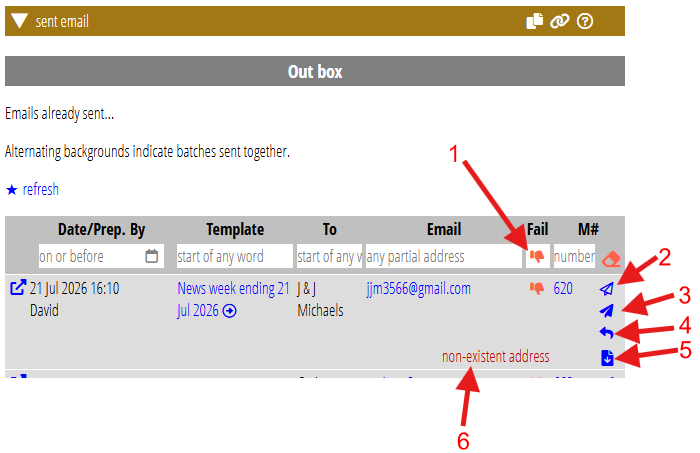
- in the outbox in communications → sent email (Fig 1: 6), along with a red thumbs-down icon
- in the list of correspondence for a specific membership, in member info → past communications, ditto
Most emails bounce within a minute or two of sending, but we wait a couple of hours after a mailshot to aggregate the somewhat slower responses. In some cases, though, it may take several days before an email bounces (after several retries behind the scenes).
quarantine
When Cameo gets a bounce message, it quarantines the problem email address. That is, it excludes the address from any further mailings until you un-quarantine it. If you send another mailshot to the same recipients, you’ll see the message listed among the failures as already quarantined (and why).
about spam
Detecting spam is hard: it is mostly educated guesswork. It treads a fine line between letting spam through and rejecting valid email. It is often based on a score bringing together lots of different indicators, including:
- content, especially trigger words, ALL CAPS, lots of exclamation marks!!!!, small single images
- similar emails sent to the same provider that other users have marked as spam
- sites linked to from the email
- the reputation of the sending server
- using modern security settings to confirm the identity of the sender
- third-party block lists
- and so on.
Some providers will block all mail coming from a particular server if any mail from it reaches a honey trap email address, even though that mail may be nothing at all to do with you. Some providers take even a small number of spam reports as a reason to reject all of your mail – and people often mark email they don’t want as spam rather than unsubscribing. People often see spam as email I don’t want rather than just unsolicited email.
So sometimes a provider will reject your email as spam. That usually means all mail to that particular provider fails. We have seen occasions when this has happened because:
- you link to a website that someone has correctly or erroneously classified as harmful;
- you have a single small image in the email;
- you used multiple exclamation marks; or
- simply from setting their threshold for spam too low.
It is almost impossible to engage with providers, especially the large ones, to know why they took exception to your email so that you can deal with it.
Email used to be a wild-west where anyone could send anything, pretend to be anyone, track everyone. Nowadays, it’s much more controlled. There are numerous security checks which go by various acronyms (SPF, DKIM, DMARC, BIMI, SRS, ARC), that recipients use to require you to prove you are who you say you are. But, of course, the professional spammers are the most diligent at observing these! Cameo handles most if these requirements automatically for you.
You must provide opt-out links in mailshots and an opt-out form, both by law, and to satisfy the large providers. Cameo includes links to the opt-out form in the hidden email metadata so that email apps can display their own opt-out button; that is what the provider’s check for.
Sometimes a spam bounce has nothing to do with you. Many people forward email from their own domain to a generic inbox (such as GMail). Forwarding is a particular problem for email security, as it can make the email look like it has come from the intermediate (unauthorised) server. None of the systems to deal with this really work properly at present. So in effect, people doing this naively may cause rejection of their own, but you’re the one that sees it happen, not them.
Finally, not all spam detection results in a bounce. They may receive the mail but their spam filter directs it to the spam folder. It is very hard to know whether this is happening. Many email accounts direct newsletters to a different folder or tab by default, and lots of people just never look in those tabs.
What to do with bounced email
What to do next depends on why the email failed. Generally you should escalate through a number of steps as follows:
1. Try re-sending the email
… perhaps the following day, to give time for them to fix any transient problems.
Find the email in the list of sent emails (communications → sent email, Fig 1). You can use the filters at the top of the list to locate messages by email address of the recipient and/or whether they failed (the red thumbs-down icon in the filters is particularly useful in these circumstances – Fig 1: 1).
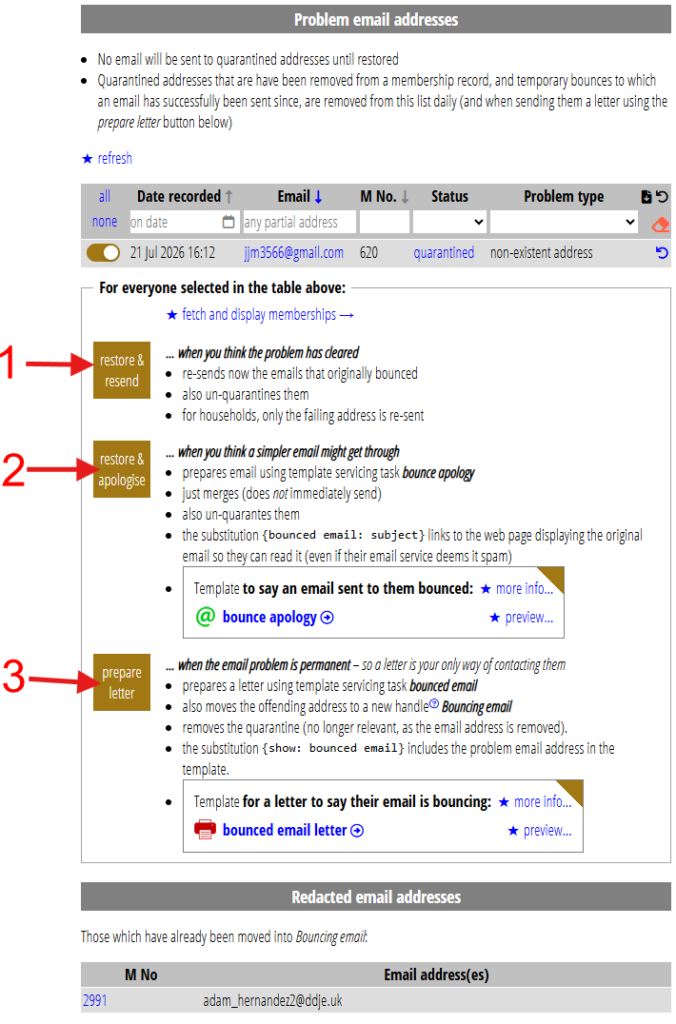
You’ll also be able to see failing email addresses in the problem email addresses table further down (Fig 2).
how to re-send
To resend an email click the solid paper plane icon alongside the message that failed (Fig 1: 3). The outline icon (Fig 1: 2) does the same, but only puts the message into communications → pending emails ready for sending manually later. This gives you the option to add or change the email before sending. We prompt you to un-quarantine the address first.
Alternatively, when you have a group of similar failures, you can use the restore & resend button (Fig 2: 1). This un-quarantines and re-sends all the messages you select in the list.
when to re-send
There is no point in resending to non-existent addresses. For addresses that used to work, usually they simply haven’t let you know they changed their email address. For new addresses, look for obvious typos (such as someone@gnail.com or someone@hotmail.com when they might have meant hotmail.co.uk or snith@… when you know their name is Smith).
If you think it might be that, don’t just re-send the message to what you think it should be: if you are wrong, you risk exposing someone’s personal information. Instead, send an email asking if the corrected address might be them, but without revealing the identity of the original. For example: “did you recently join our organisation? We think you might have mis-typed your email address – it looks very much like it should have been a Gmail address. If this wasn’t you, sorry to have bothered you.” You might want to set up a suitable template: a surprisingly large number of people fail to enter their email addresses into forms correctly.
In principle mailbox full errors ought to clear eventually. However, our experience is that more-often-than-not this indicates an abandoned email account. In any case, give it several days before re-trying. Providers should fix technical problems, but again these can indicate a hobbyist recipient who hasn’t configured their home email server correctly.
When it has triggered a spam detector, a re-send a day later sometimes works. If the recipient’s system rejects your content, then you’ll get another bounce back. But some spam detection happens because they have taken exception to the sending mail server IP address, often shared with others. A re-send may work then if they have removed the address from their block list, or if it happens to take a different route the second time.
Don’t try to re-send repeatedly. That can make the situation worse by harming your reputation score with the recipient’s provider. That may cause them to reject other recipient email addresses as well.
2. send a different message: an apology
Use the second button, restore & apologise, in problem email addresses in communications → sent email (Fig 2: 2). Typically you’ll use this in the case of false-positive spam.
Again this works on those email addresses selected in the list of failures. The button uses the template identified alongside (so set it up and customise it as required the first time you need it).
Typically this will say you sent them an email but apologises for them not receiving it. You’ll want to emphasise their provider is at fault for falsely bouncing a message and refer them to their provider’s support. But mainly you’ll want to include a reference to the original message so they can actually read it. This assumes you have the email form set up on your website, which is the form that responds to view email in browser links.
Cameo provides substitutions (which only work in this context):
{bounced email: subject}which inserts the subject line of the failed message, so they have an idea what it was about,{bounced email: url}which provides them with the URL of the email form in your website, personalised so it displays the failed message. Often you’ll use the subject as a link with this URL as its target (that’s what the proforma template Cameo provides does).{bounced email: bounce message}the reason why it bounced as supplied by the provider. This can be cryptic, but would be needed by the provider support to look a the problem.
3. send them a letter
… the expensive option; your only real choice if the email address does not exist.
Use the third button prepare letter in problem email addresses in communications → sent email (Fig 2: 3).
This is similar to sending an apology, and can use the same substitutions, but the template is a letter rather than an email. You’ll also want to tell them which email address failed, with {show: bounced email}, because:
- they might be in a household with multiple email addresses, and
- seeing the email address will often jog their memory that they changed it, or whatever,
- they may be forwarding the email from the target account, so they may not be thinking about that address.
However, this button also does a little more: it is an acceptance that this is a dead email address, so before preparing the letter, it removes the email address from the membership record and puts it into an alternative email address field. That means it won’t be used, and (in the absence of anyone else in a household with an email address) would make them paper-only recipients. {show: bounced email} accesses that alternate email address. (We also un-quarantine the address, since we no longer use it).
What happens next
If you or the recipient can resolve the problem, then you can reinstate and un-quarantine the problem email address.
For supporter contacts and similar, there is no point in keeping the record at all if they are unreachable. From a data-protection point of view, it is better just to delete them.
If you are unable to contact a paying member or they do not respond, you may have to wait for them to contact you if they realise they are no longer getting email from you.
Occasionally, people mark email as spam when they actually want to opt out or resign, but can’t be bothered or don’t know how. They just ignore you until their membership expires.
- if your Cameo domain is cameo.example.com, then this address will be something like bounce+IDENTIFIER@to.cameo.example.com. The to… domain is the same used for all incoming email to Cameo (see profile → incoming email). ↩︎