
Passkeys are now widely available as an alternative to passwords, are simpler to use and have additional features. So we have tidied up some aspects of Cameo’s login to reflect this. See separate article for how to set up and use passkeys. This article just reviews the changes.
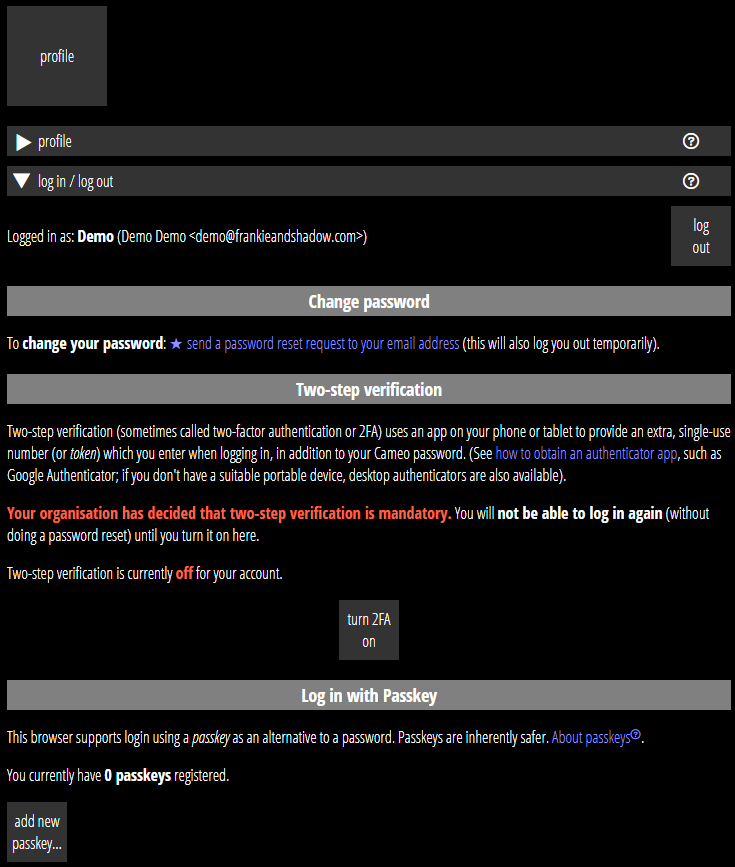
- Find the log out button, two-step verification set up and passkey management all now in profile → log in / log out.
- Cameo now only has a single button to set up a passkey.
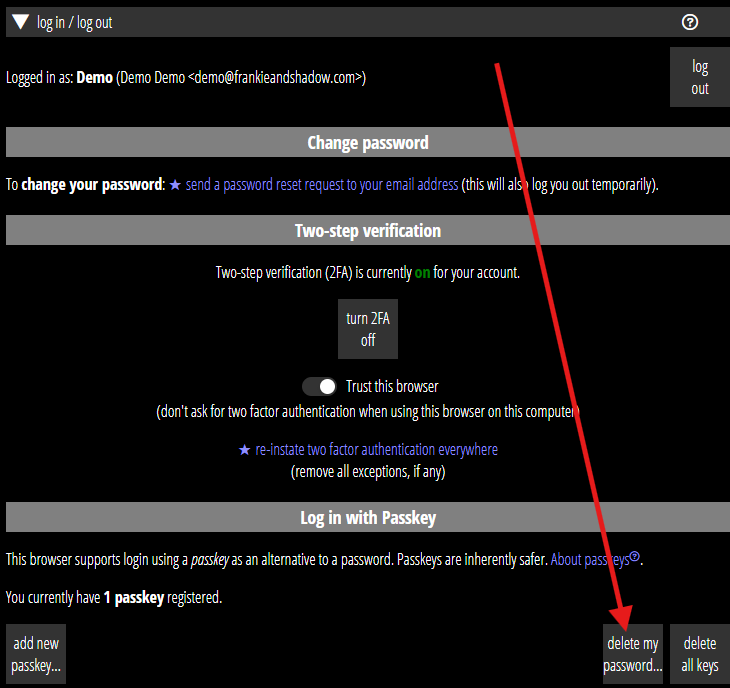
- Once you have set up a passkey, you can remove your password completely.
- We now only refer to passkeys, not biometric log in or hardware keys.
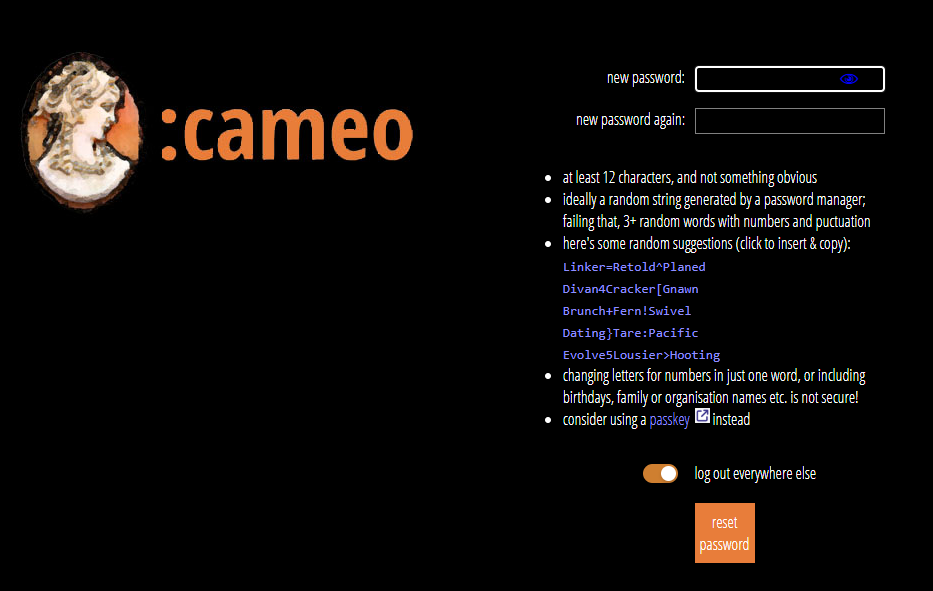
- We require short passwords to be changed (and provide suggestions)
- We’ve removed Cameo’s in-house phone login mechanism.
- You can no longer get a two-step verification code by email.
Contents
Background
Before passkeys, we had webauthn as an alternative to passwords. Cameo supported this from its introduction. They both use the same technology, but the emphasis and terminology has changed.
Cameo itself provided some of the original features that the operating system now offers as standard. At the same time, the wide availability of biometric authentication (Face ID, Touch ID) on all platforms, especially phones, has overtaken hardware keys like Yubico. (Newer versions of Yubico keys still work, but they are much more expensive now).
So, Cameo has simplified what it offers. We let the computer’s more recent built-in systems do more instead. At the same time we’ve tightened up a couple of potential security issues.
Passkeys: consolidation
Set up for passkeys (article includes a short video) and two-step verification (2FA), and the log out button, both now live in profile → log in / log out. You can still also log out from the information box accessed via either of the logo buttons at the top left.
A single button now makes a passkey. That offers your preferred passkey provider (according to the operating system). For example, if you install Bitwarden, you’ll use that. If you need to make a non-default choice, you have that option (you may have to scroll down a bit to find it).
We now only refer to passkeys, even though alternatives like biometrics and hardware keys are still available. The name passkey is now ubiquitous and subsumes all of these.
No password!
If you add a pass key, you can then also optionally remove your password (Fig 2). That completely removes any risk of password loss through a compromised server. (Passkeys are never sent to the server; you can still log in on an unfamiliar computer if necessary). You can also still do a password reset to add a password back later.
As passkeys become much more common, its likely the initial invitation to join Cameo may prompt setting up a passkey rather than a password, so by default you never have a password. That’s a step too far just yet though.
Short passwords
Some years ago, we increased Cameo’s minimum password length to 12 characters, now regarded as standard. However, long-standing users may still have shorter passwords. We now check for these and prompt a password reset. Setting a password now offers suggestions (Fig 3).
The only time we see your password is when you log in, so we can only do this then, not for unused passwords. Administrators should remove unused logins.
Phone login removed
We have removed the custom method Cameo provided to use your phone to log in on your desktop browser using Face ID etc to authenticate. Operating systems now use passkeys and QR Codes to provide a similar, built-in way to do this. Cameo’s mechanism is redundant; no one was using it routinely. Removing Cameo’s own mechanism makes it safer (it reduces the attack surface).
2FA: no codes by email
If you lost access to your two-step verification app, Cameo previously offered to email you a temporary code. We’ve removed this. The only alternative is now the backup codes provided when you first set up two-step verification. If you lose those as well, you’ll need to contact Cameo support.
This removal deals with a potential problem where attackers compromise someone’s email account. Because we email password reset codes and, previously, also fallback for 2FA codes, if an email account was compromised, both login steps were also compromised.
I considered using text messages (SMS) as a fallback. However, this is costly. More importantly, if you lost your 2FA app, chances are you lost your phone as well, so a text message wouldn’t help.
In general, we recommend using a password manager that synchronises across platforms, such as Bitwarden (paid for version) or if you mostly use Apple devices, then their built-in password manager. That way, if you lose your phone, you don’t lose your 2FA as well.