
Payment processor SumUpInPerson links in-person card payments made with the SumUp app with Cameo forms. You can use a SumUp card reader or tap-to-pay using just a phone to take payments. It’s similar to using the Zettle card reader.
Contents
Background
You would use SumUpInPerson at an event where you take payments in person from a customer at the same time as completing a Cameo form. The two interact when the form reaches the payment step. For example, someone signs up for membership, using Cameo’s join form, at a stall at a fair. Staff take payment rather than the customer entering their own card details, known as point-of-sale, or POS.
In the past this has meant using a card reader. Now, though, tap-to-pay allows you to take card payments directly on a phone with no need for a separate device.
When making card-holder-present payments through tap-to-pay or a card reader, the challenge is how to link the payment to the Cameo form for which payment is being taken. For Zettle, you enter the receipt number (which is quite short). For SumUp, getting an identifier is more fiddly. Their identifiers are much longer, so SumUpInPerson uses timing to identify the payment automatically.
SumUp takes all payments through its app (unlike Zettle, whose card readers can work stand-alone). Their app can take tap-to-pay and card reader transactions. Card reader and tap-to-pay both work exactly the same with SumUpInPerson.
Limitations
- Both the SumUp app and the device offering the Cameo form need to be online, via WiFi or mobile. They can run on the same device, but it may be more convenient if they aren’t. For example, you could hand an iPad to the customer. They complete the form, but you take payment on a separate phone. The iPad could be tethered through the phone with the app mobile signal.
One-off preparation
You need an account at SumUp to take payments. Add your membership types as products in the SumUp account. (You can do this in a browser or through their app).
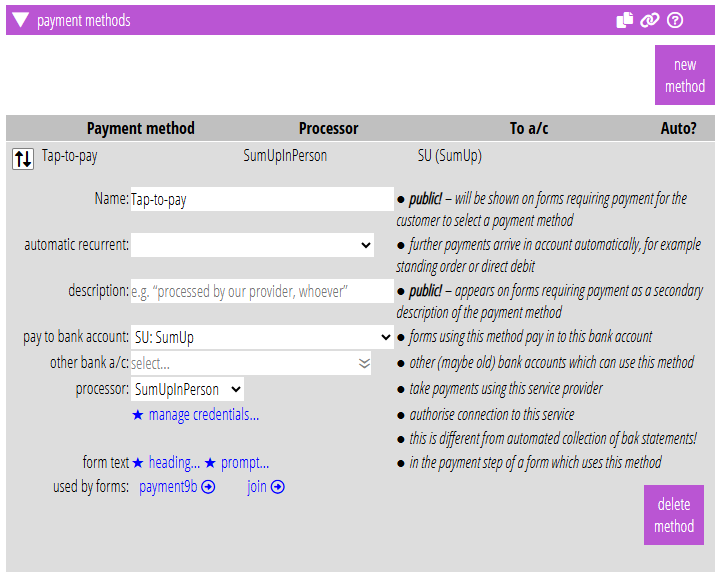
Create a payment method in organisation settings → payment methods with SumUpInPerson as the processor (Fig 1). Direct its payments to a Cameo bank account for SumUp, the same one you might use for online sales through SumUp. If you aren’t already doing that, create a new account for SumUp transactions. If you are, transactions for POS and Online payments end up in the same SumUp account.
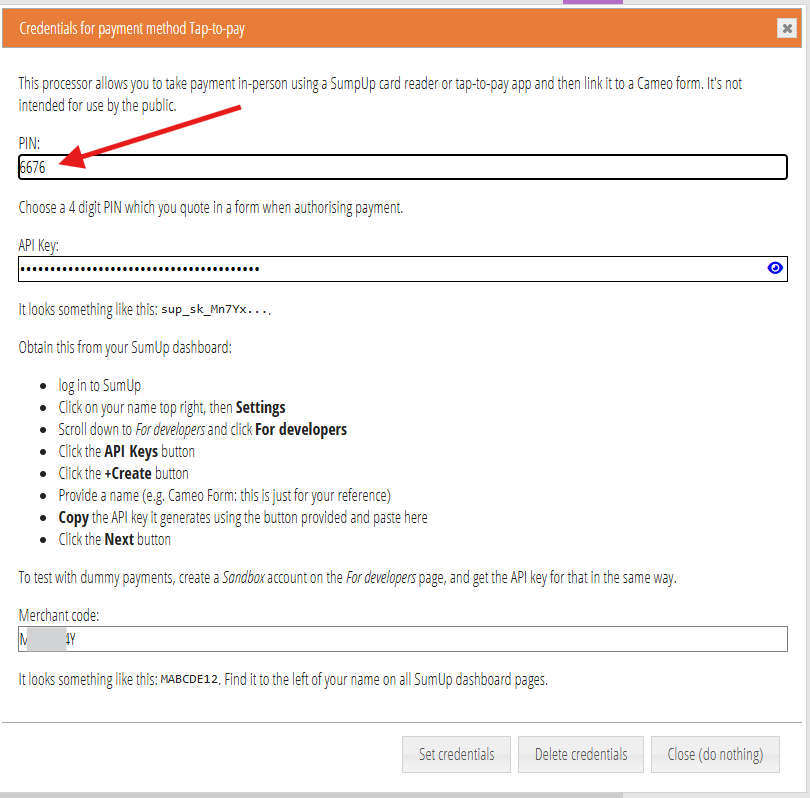
Complete the payment processor credentials (as described in the credentials box, including inventing a four-digit PIN – see below; Fig 2).
Add the new payment method to any forms you want to take payments for in this way. For example, the join form. Because payments are taken by staff, you might choose to use a join form different from the public one. You would put it on your website somewhere not normally linked to. This means
- it doesn’t trouble people online wondering what this other payment method is,
- you can potentially simplify some of the things you’re asking for
- it need only have the one payment method,
- you can potentially phrase the acknowledgement messages differently (either with a different template, different payment-specific text, or a conditional paragraph based on payment method in the same template – for example, directing them at resources or to add their address later),
- you could style the form to have larger text and more contrast so it works better in sunlight.
(You can start by copying the existing join form and work from there).
At an event
For memberships, complete the join form at the event. You might complete the form from the details the customer gives you. Alternatively, hand the device to them to fill in the form. The form can be on the same device as the SumUp app, but it is probably easier if it is on a tablet. At the step of taking payment (Fig 3), take the payment on the app/card-reader.
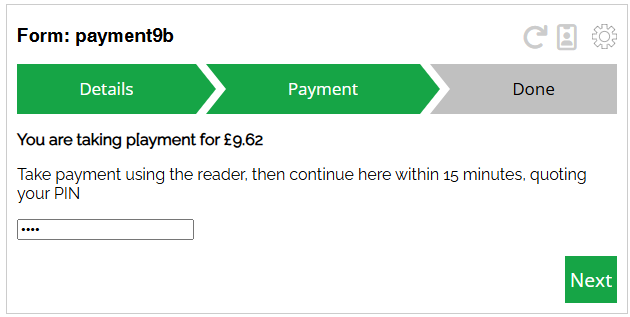
When the payment completes, click the next button in the Cameo form. The first time you do this on each device (more specifically, browser), you’ll need to supply the PIN that you set up in the payment method credentials. This prevents people who come across the form from randomly using it. But it remembers the PIN in your browser for future transactions.
Usually that then completes the form and you’re done, just like having entered a card number online.
matching payments
However, behind the scenes, Cameo matches the payment to very recent point-of-sale transactions on the SumUp account (within 15 minutes). Usually there is only one. However, if you have two people working the stall, you might occasionally take payments around the same time. If they don’t complete payment before you start, Cameo doesn’t know which of the transactions you made. In that case, the form lists the possible matches and ask you which is your sale. It provides:
- The SumUp transaction IDs. You can find these in Sales on the SumUp app. (However, it appears the app doesn’t update quickly after you make a sale. You have to do a long pull down to refresh).
- The last four digits of the card numbers. This may be an easier way of matching (except for phone payments where you can’t actually see the card),
- and also the payment amounts and transaction times.
It doesn’t match on the amount, so if you include payment for unrelated merchandise sales, it still works. Nevertheless, as there is no fixed fee with SumUp, it may be neater to take additional payments separately. That doesn’t apply to donations: if you take an extra donation, you can include it at in the join form so it reflects the total paid.
Reconciliation
As with all form payments, the Cameo form creates an interim transaction for POS payments in the SumUp bank account.
When SumUp transactions arrive in the Cameo bank account overnight, Cameo recognises POS payments. It matches them to Cameo’s interim transaction, reconciling them automatically.
However, if you did include merchandise in the same payment, it won’t match. You’d have to split the payment manually in reconciliation. Then match the part for the membership to the interim transaction (which it should offer). Donations included in the total are matched, though, just like online payments.
If you omit the address or phone number in a special join form, one way to acquire it later is through the updates form. You can send them a personalised link to that form. Enrolment provides for sending a follow up message after a certain number of days.