.
Cameo 11 works out where forms are embedded. This allows considerable simplification of links in emails that direct people to a form. Because you generate all such links using a substitution, we can personalise them all automatically.
Also, knowing where forms are, Cameo’s Script Watch can check the relevant pages automatically, no set-up required.
Contents
Background
A personalised link includes a code that identifies the email it came from, and therefore who it was sent to (and, in some cases, why). That means forms embedded in pages reached via such a link know who they refer to without the visitor having to identify themselves in the form.
Previously, Cameo had no knowledge of where to find a form on your website. That meant you inserted links to your forms manually and then had to personalise them explicitly. In a few cases (opt out, wallet, email in browser), you could use substitutions specific to them because organisation settings stored the page location.
Now though, Cameo identifies the locations of all forms automatically, so you can generate personalised links to any form just by using a substitution that identifies the form.
Update cameoforms / cameoformblock
To take full advantage of this new mechanism, update your WordPress form plugin, from forms → wordpress plugins. This gives the form a head start knowing which page embeds it. It detects when you publish a page with a form and lets Cameo know. Visiting a form page does the same, but publication is Cameo’s earliest opportunity to detect form pages.
In fact, you should update all your WordPress plugins. Doing that takes advantage of Cameo’s new ability to update its plugins from WordPress and update automatically when necessary.
Substitutions
You now need only a few generic substitutions to generate a personalised link to a form. Select these from the substitutions panel in the usual way, choosing the form to link to from the menu provided.
{show: link to form}(form is the name of a form) – provides a personalised link to the page on your website which embeds the form, using the text provided in the form definition for the text of the link{show: button for form}the same, but produces a link styled as a button (using your house style){show: url of form}yields just the URL part of the personalised link, so that you can customise the text and appearance (we don’t expect you’ll need this one very often)
Corresponding substitutions select a form by type, assuming there is only one such form. (This makes it much easier to produce ready-made templates, without the form needing to exist in advance):
{show: link form type form-type}{show: button form type form-type}{show: url form type form-type}
link text
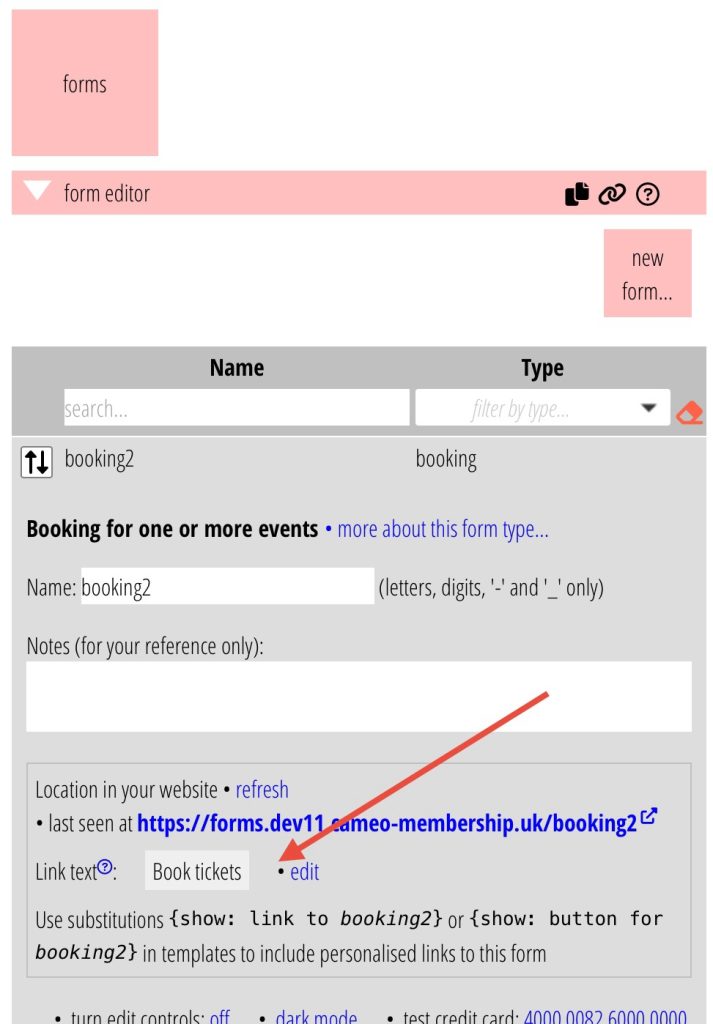
The link and button substitutions produce click-able text. They get this from the form, in forms → form editor. Click the edit control (Fig 1) to change this.
You can use substitutions in this text (for example, you may want different text in an invoice form depending on what kind of trading document the template is dealing with, so you can use {if: document whatever}).
The same box also shows the URL of the page which hosts the form. You can click to check.