
.
You can now offer additional fields in the join form which save as notes in the membership record, instead of in custom fields.
Contents
Background
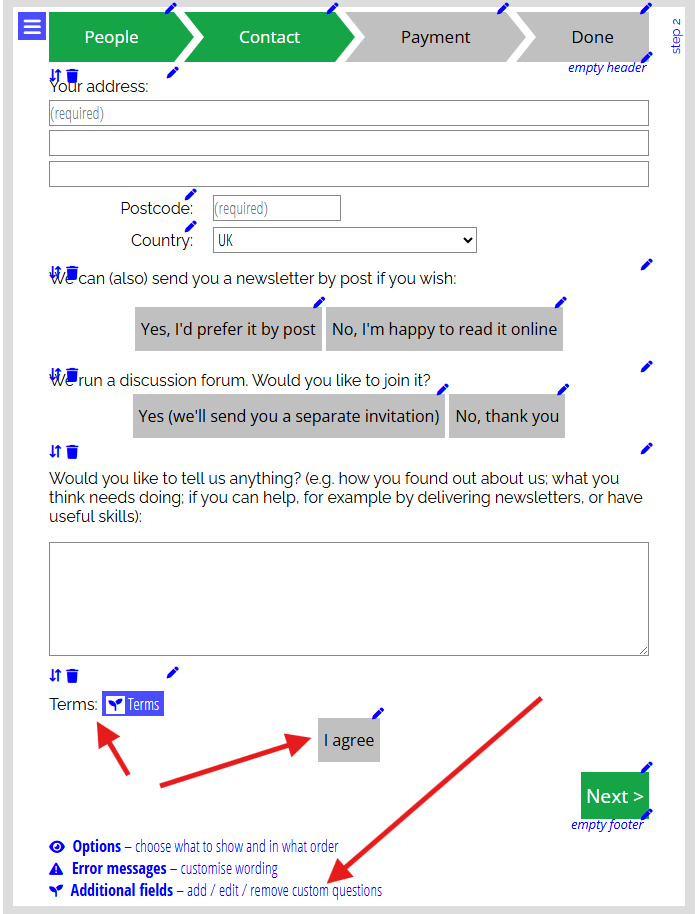
In early 2024, Cameo added the ability to provide additional fields in join forms. You’ll find this on the second (contact) step of the form. Click the seedling icon ( ) to add an additional custom field.
For each such field, the form then saves the value the applicant enters into a custom field of the same name in the membership record it creates.
Instead, you can now have the additional field save its value into a note in the built-in Notes field of the membership record.
Make a note
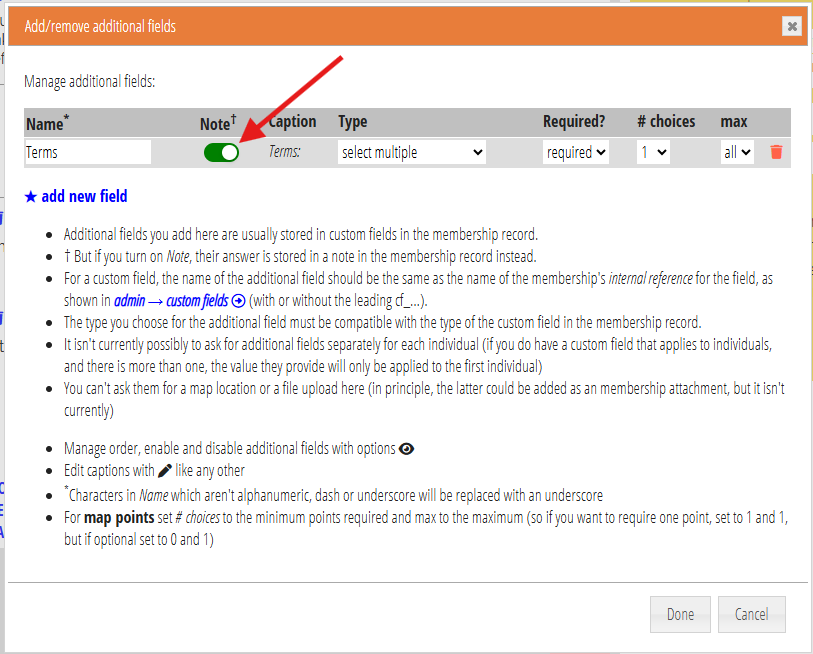
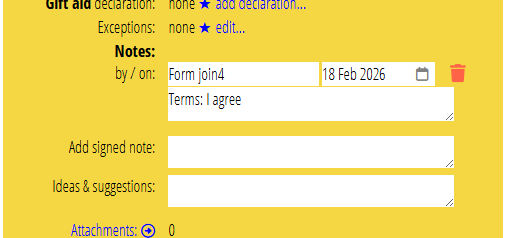
When you click the additional fields button (, Fig 1) and add new field, you’ll see there is now a column headed Note (Fig 2). Each field has a toggle to turn on in that column. When you do that, the form puts the response for that field in Notes in the membership record, instead of a custom field (Fig 3).
You can have as many additional fields as you like. You can decide independently for each whether it is saved to a custom field or to a generic note.
For example (Fig 1, 2, 3), say you add a button called Terms with a caption asking them to agree to your terms and conditions. You only need one required response, as if they don’t agree then they can’t proceed. We’ll turn on Notes for that field. We’ll label the button ‘I agree’.
Then, when the respondent clicks the button to agree, the form creates their new membership record with a note. The field indicates the form created it and when. The form behaves like manually entering a signed note into the record.
If the custom field does not exist
The form editor shows you a warning that there is a problem if:
- you don’t select Note for an additional field, and
- you have not added the corresponding custom field to the membership records.
If you leave the form like that, then the form saves the response to Notes instead. (Previously, the form just didn’t work at all).