.
Mailing labels are a new template type in Cameo 11, making them easier to set up.
Contents
Background
Mailing labels (and similar items, like lanyard badges and some event tickets) are like letters. They merge records and flow the result into stationery boxes. They differ, however, in that new records start in the next available box rather than at the start of a new page.
Measuring and making all the relevant stationery boxes, though, is time-consuming. By separating labels into their own template type, we can make your specific stationery layout when making the template.
New mailing labels
To make a template for mailing labels click the mailing labels button in new template. Mailing lables are identified by a label icon  . While you can also make lanyard badges like this, they are usually associated with an event, so you can make the template as part of the event.
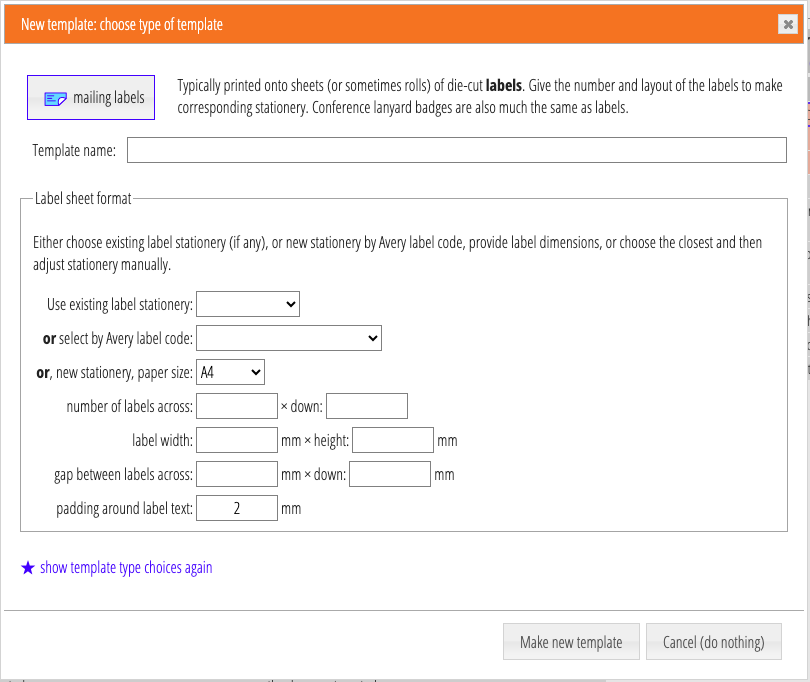
Like all new templates in Cameo 11, this then offers a group of type-specific options. For mailing labels, this mainly comprises selecting the layout of labels on a page (Fig 1). There are three ways of doing this:
- Use existing stationery (and therefore label layout). You would use this when you already have stationery for your label blanks, but need different information on them, or different recipients (audience).
- By Avery code. Avery layouts have become a de-facto standard. Many boxes of labels tell you what equivalent Avery code they correspond to. This means you can select the layout from a simple menu.
- By providing the key dimensions measured from your blanks (some boxes of labels include a plain paper grid for this purpose). This may require some trial and error (especially vertically) as printers do not always align the zero point perfectly. You can do that either by re-creating the stationery here, or adjusting the box positions later in the stationery editor.